Can Excel animate a chart?
No. Excel charts are static; animate them in PowerPoint or rebuild them from the data in an animation tool.
Guide · with a free chart maker
Neither spreadsheet animates charts or exports video. Here’s the PowerPoint route for Excel, the options for Google Sheets, and the quickest way: paste the cells.
Excel and Google Sheets can draw charts but can’t animate them or save them as video. For Excel, the usual route is to paste the chart into PowerPoint, animate it there and export a video. For Google Sheets, the quickest route is to copy the cells, or publish the sheet as CSV, and bring the data into an animated chart tool such as the one at the top of this page.
Bringing the data (not the picture of the chart) has a big advantage: the animation can be driven by the numbers, so bars race, lines draw and values count up, and you can export MP4, GIF or a transparent overlay at the size each platform wants.
In Excel or Google Sheets, select the table including its header row and copy it (Ctrl+C or ⌘C).
Open a chart at the top of this page and choose Paste data in the Data step (or press Ctrl+V or ⌘V anywhere in the studio).
In Chart, choose a chart; the ones marked Suggested suit the shape of your data.
In Export, choose Video (MP4), GIF or Transparent video (WebM) and press the export button.
The PowerPoint guide covers each step and the Mac limitation (exported Mac movies don’t include animation effects).
Google Sheets has no chart animation, and Google Slides can’t download a presentation as a video. Slides’ File → Convert to video sends the deck to Google Vids on eligible Workspace plans, but slide animations aren’t carried over. So for Sheets, bring the data to a tool that animates it.
In Google Sheets, choose File → Share → Publish to web, pick the sheet, change the format to Comma-separated values (.csv) and press Publish. Paste the link into From a link in the Data step; your browser fetches the CSV directly. A normal sharing link also works if the sheet is shared with anyone who has the link. Publishing makes the data public, so don’t publish anything private.
 (enlarge image)
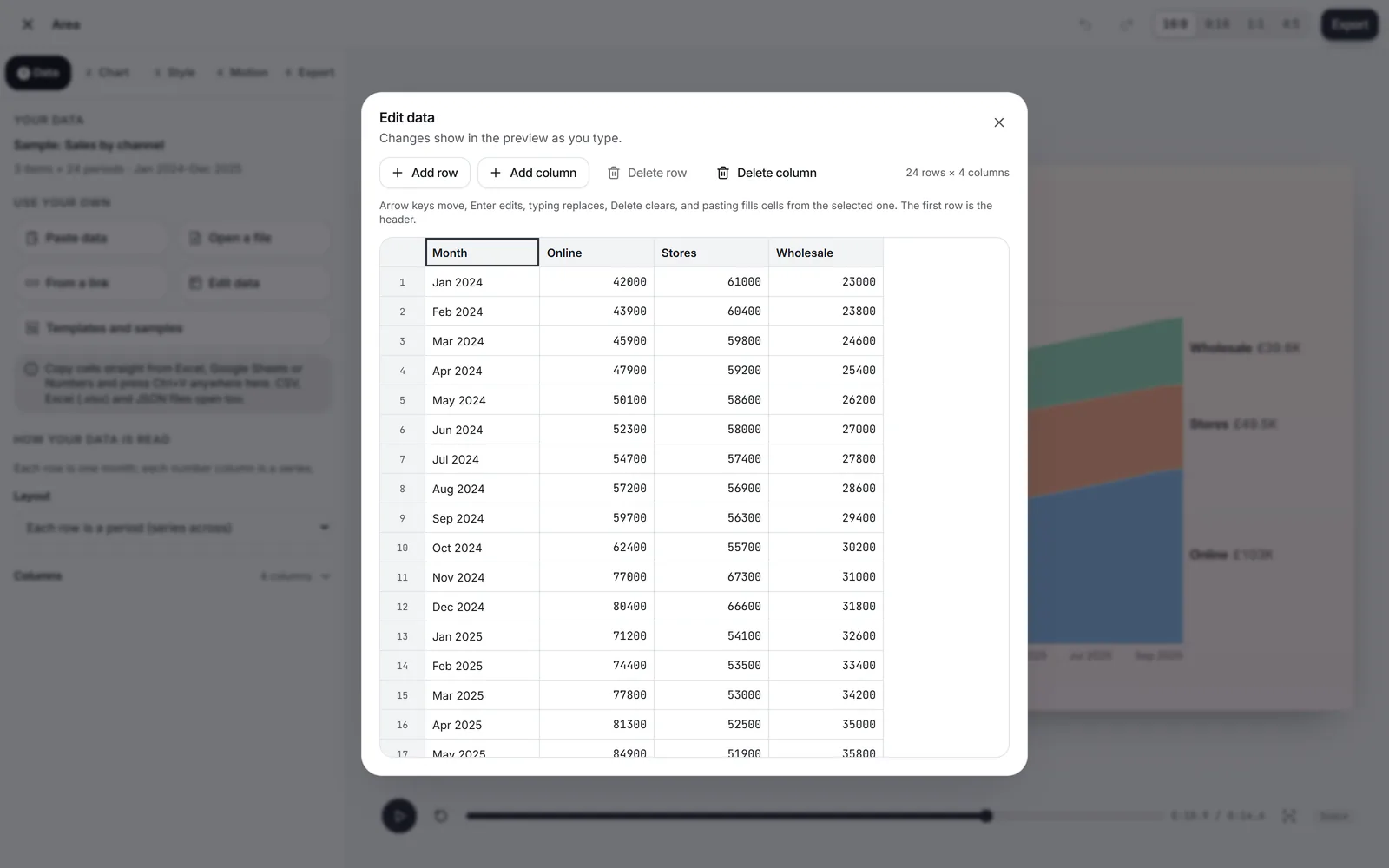
Check or fix values in Edit data.
No. Excel charts are static; animate them in PowerPoint or rebuild them from the data in an animation tool.
Not directly. Download the chart as an image, or copy the data into a tool that makes animated chart videos.
Yes, .xlsx files are read in the browser (first visible sheet). Nothing is uploaded.
The sheet must be published to the web or shared with anyone who has the link. Other websites’ files only load if their server allows it; if not, copy and paste the cells.
No. The data is read when you load it. Load the link again to pick up changes, then export again.